A sales report can include a lot of numbers. Sebuah laporan penjualan dapat mencakup banyak angka. That's why you'll need to calculate sums at the appropriate locations in a report. Itulah mengapa Anda akan perlu untuk menghitung jumlah di lokasi yang tepat dalam laporan. In this article, learn how to place calculated sums in your reports. Pada artikel ini, belajar bagaimana untuk menempatkan jumlah yang dihitung dalam laporan Anda. We provide a downloadable database with examples. Kami menyediakan database download dengan contoh-contoh.
| Applies to Berlaku untuk |
|---|
Microsoft Office Access 2003 Microsoft Office Access 2003
Microsoft Access 2000 and 2002 Microsoft Access 2000 dan 2002 |
Question: How do I display totals at the end of my report? Pertanyaan: Bagaimana cara menampilkan total di akhir laporan saya?
You create a calculated control in the report footer. Anda membuat kontrol dihitung dalam laporan footer. A calculated control is one whose source of data is an expression rather than a field. Suatu pengendalian yang dihitung adalah salah satu sumber data adalah ungkapan daripada lapangan. When you open a report that contains a calculated control, Access calculates the correct value by using the current data. Bila Anda membuka sebuah laporan yang berisi kontrol dihitung, akses menghitung nilai yang benar dengan menggunakan data saat ini. For example, to print the current date on a report, you enter the expression =Date() in a text box. Date is a built-in function that returns the current date as stored in your computer's system clock. Misalnya, untuk mencetak tanggal saat ini pada laporan, Anda masukkan ekspresi = Tanggal () dalam kotak teks. Tanggal adalah built-in fungsi yang mengembalikan tanggal saat ini sebagai disimpan dalam sistem jam komputer Anda. When Access runs this report, the expression in the calculated control, Date(), is evaluated, and the current date is displayed in the control on the report. Ketika berjalan Akses laporan ini, istilah dalam kontrol dihitung, Tanggal (), dievaluasi, dan tanggal saat ini ditampilkan dalam kontrol pada laporan tersebut
Menghitung total kelompok atau laporan
To calculate the sum of the quantities ordered for the entire report, you place a text box control in the report footer and set the ControlSource property of the text box to the following expression: Untuk menghitung jumlah dari jumlah memerintahkan untuk seluruh laporan, Anda menempatkan kotak kontrol teks dalam footer laporan dan menyetel properti ControlSource dari kotak teks untuk ekspresi berikut:
=Sum([QuantityOrdered]) = Sum ([QuantityOrdered])
The Sum function calculates the total for a set of values from your record source — in this case, the column named QuantityOrdered. Sum is one of the aggregate functions in Access that you can use to calculate summary values. Fungsi Sum menghitung total untuk satu set nilai dari sumber catatan Anda - hal ini, kolom bernama QuantityOrdered. Di Sum adalah salah satu fungsi agregat di Access yang dapat Anda gunakan untuk menghitung nilai ringkasan.
Most totals are generated by calculating a sum, either for a group of records or for all records. Kebanyakan total dihasilkan oleh menghitung jumlah, baik untuk sekelompok catatan atau untuk semua catatan. When you calculate a sum, the section of the report in which you place the calculated control containing the sum expression is important. Bila Anda menghitung jumlah, bagian laporan di mana Anda menempatkan kontrol dihitung berisi ekspresi jumlah adalah penting. Access determines how to aggregate the sum based on where you place the control — that is, based on what section of the report you choose. Akses menentukan bagaimana jumlah agregat berdasarkan tempat Anda - kontrol yang berdasarkan pada apa bagian laporan yang Anda pilih.

For example, to calculate a total for one record, you create a calculated text box in the Detail section. Misalnya, untuk menghitung total untuk satu record, Anda membuat kotak teks dihitung pada bagian Detail. To calculate a total for a group of records, such as for each product in a report that's grouped by product, you create a calculated text box in the Group Header or Group Footer section for that group. Untuk menghitung total untuk sekelompok catatan, misalnya untuk setiap produk dalam sebuah laporan yang dikelompokkan menurut produk, Anda membuat kotak teks dihitung di Header Grup atau Kelompok bagian footer untuk grup tersebut. To print a grand total for the entire report, you create a calculated text box in the Report Header or Report Footer section of the report. Untuk mencetak jumlah besar untuk seluruh laporan, Anda membuat kotak teks dihitung di Header Report atau Laporan bagian footer laporan.

For detailed step-by-step instructions on how to create a calculated control for a total in the report footer, see the following expandable section: Untuk petunjuk langkah-demi-langkah rinci tentang cara membuat kontrol dihitung untuk total di footer laporan, lihat bagian expandable berikut:
 Step-by-step: How to place a calculated control for a total in a report footer Langkah-langkah: Bagaimana untuk menempatkan kontrol dihitung untuk total dalam laporan footer
To open the report in Design view Untuk membuka laporan dalam Desain tampilan
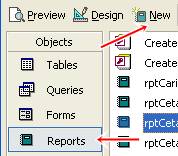
- In the Database window, under Objects , click Reports . Pada jendela Database, di bawah Objects, Laporan klik.
- Click the report, and then click Design in the Database window. Klik laporan, kemudian klik Design pada jendela Database.
To create the text box control Untuk membuat kontrol kotak teks
- On the View menu, select Report Header/Footer . Pada menu View, pilih Report Header / Footer. Make sure that it remains selected. Pastikan bahwa itu tetap dipilih. This will ensure that the report header and footer sections appear in the report design. Ini akan memastikan bahwa laporan dan bagian header footer muncul dalam desain laporan.
- In the Toolbox, click the Text Box tool. Pada Toolbox, klik Text tool Box.
Note If the toolbox is not visible, on the View menu, click Toolbox . Catatan Jika toolbox tidak terlihat, pada menu View, klik Toolbox.
- Drag the pointer in the report footer to create the text box. Geser pointer di footer laporan untuk membuat kotak teks. If a label appears next to the text box, delete the label. Jika label akan muncul di sebelah kotak teks, menghapus label.
To set the ControlSource property of the text box Untuk mengatur properti ControlSource dari kotak teks
- Right-click the text box, and then click Properties on the shortcut menu. Klik kanan kotak teks, kemudian klik Properties pada shortcut menu.
- Click the Data tab. Klik tab Data.
- To change the value of the ControlSource property, in the Control Source property box, type =Sum([QuantityOrdered]) , where QuantityOrdered is the name of the field that you want to sum. Untuk mengubah nilai properti ControlSource, di kotak properti Sumber Control, tipe = Sum ([QuantityOrdered]), dimana QuantityOrdered adalah nama field yang ingin Anda jumlah.
- Close the property sheet. Tutup lembar properti.
Understanding the report sections Memahami bagian-bagian laporan
Access divides the design for a report into sections. Akses desain untuk membagi laporan menjadi beberapa bagian. The section in which you choose to place a calculated control determines how Access calculates results for aggregate functions such as Sum . Bagian di mana Anda memilih untuk menempatkan kontrol dihitung menentukan bagaimana Akses menghitung hasil untuk fungsi-fungsi agregat seperti Sum. Here's a summary of the section types and their uses: Berikut adalah ringkasan dari jenis bagian dan menggunakan mereka:
- Report Header Printed once at the beginning of the report. Laporan Header cetak sekali pada awal laporan. Use the report header for information that might normally appear on a cover page, such as a logo or title and date. Gunakan judul laporan untuk informasi yang biasanya mungkin muncul pada halaman sampul, seperti logo atau judul dan tanggal. When you place a calculated control that uses the Sum aggregate function in the report header, the sum calculated is for the entire report. Bila Anda menempatkan sebuah kontrol dihitung yang menggunakan fungsi agregat Sum di header laporan, jumlah dihitung adalah untuk seluruh laporan. The report header prints before the page header. Header Laporan mencetak sebelum header halaman.
- Page Header Printed at the top of every page. Page Header Dicetak di bagian atas setiap halaman. Use a page header, for example, to repeat the report title on every page. Gunakan header halaman, misalnya, untuk mengulang judul laporan pada setiap halaman. Aggregate functions do not work at the page level, but you can create page-level sums by using another technique shown later in this article. fungsi Agregat tidak bekerja pada tingkat halaman, tetapi Anda dapat membuat jumlah halaman-tingkat dengan menggunakan teknik lain ditunjukkan kemudian dalam artikel ini.
- Group Header Printed at the beginning of each new group of records. Group Header cetak pada awal setiap kelompok baru rekaman. Use the group header to print the group name. Gunakan grup header untuk mencetak nama grup. For example, in a report that is grouped by product, use the group header to print the product name. Misalnya, dalam sebuah laporan yang dikelompokkan menurut produk, menggunakan kelompok header untuk mencetak nama produk. When you place a calculated control that uses the Sum aggregate function in the group header, the sum is for the current group. Bila Anda menempatkan sebuah kontrol dihitung yang menggunakan fungsi agregat Sum di header grup, jumlah ini untuk kelompok saat ini.
- Detail Printed once for every row in the record source. Detail Dicetak sekali untuk setiap baris dalam sumber catatan. This is where you place the controls that make up the main body of the report. Ini adalah di mana Anda menempatkan kontrol yang membentuk tubuh utama laporan ini.
- Group Footer Printed at the end of each group of records. Group Footer cetak pada akhir setiap kelompok catatan. Use a group footer to print summary information for a group. Gunakan footer kelompok untuk mencetak informasi ringkasan grup. When you place a calculated control that uses the Sum aggregate function in the group footer, the sum calculated is for the current group. Bila Anda menempatkan sebuah kontrol dihitung yang menggunakan fungsi agregat Sum di footer kelompok, jumlah yang dihitung adalah untuk kelompok saat ini.
- Page Footer Printed at the end of every page. Page Footer Dicetak di akhir setiap halaman. Use a page footer to print page numbers or per-page information. Gunakan halaman footer untuk mencetak nomor halaman atau informasi per-halaman. You must use the technique shown later in this article to print a sum per page. Anda harus menggunakan teknik ditunjukkan kemudian dalam artikel ini untuk mencetak jumlah per halaman.
- Report Footer Printed once at the end of the report. Laporan Footer cetak sekali pada akhir laporan. Use the report footer to print report totals or other summary information for the entire report. Gunakan laporan footer untuk mencetak total ringkasan laporan atau keterangan lainnya untuk seluruh laporan. Note that the report footer appears last in the report design but prints before the final page footer. Perhatikan bahwa laporan footer muncul terakhir dalam desain laporan, namun mencetak sebelum footer halaman terakhir. When you place a calculated control that uses the Sum aggregate function in the report footer, the sum calculated is for the entire report. Bila Anda menempatkan sebuah kontrol dihitung yang menggunakan fungsi agregat Sum di footer laporan, jumlah dihitung adalah untuk seluruh laporan.
Placing sums in the page header or footer Menempatkan jumlah di header halaman atau footer
Sometimes you want to calculate a total for each page of a report. Kadang-kadang anda ingin menghitung total untuk setiap halaman laporan. The page footer and header sections, however, do not support calculated controls that use aggregate functions such as Sum . Header footer dan bagian halaman, bagaimanapun, tidak mendukung kontrol menghitung bahwa menggunakan fungsi agregat seperti Sum. You can solve this problem with a little understanding of how reports work in Access, and a small amount of Microsoft Visual Basic® for Applications (VBA) code. Anda dapat memecahkan masalah ini dengan sedikit pemahaman tentang bagaimana laporan bekerja di akses, dan sejumlah kecil dari Microsoft ® Visual Basic for Applications (VBA) code. VBA is the programming language that Access uses. VBA adalah bahasa pemrograman yang menggunakan Access.
Access divides a report into sections and processes each section in turn according to its type. Akses membagi laporan menjadi beberapa bagian dan proses setiap bagian pada gilirannya menurut jenisnya. The Report Header section, for example, is printed once, at the beginning of the report. Bagian Laporan Header, misalnya, dicetak sekali, di awal laporan. The Page Header section, on the other hand, is printed at the top of every single page. Page Header bagian, di sisi lain, dicetak di bagian atas setiap halaman tunggal. Because reports often have many pages, the Page Header section tends to be called often. Karena laporan sering memiliki banyak halaman, bagian Page Header cenderung disebut sering. Normally, the most often called section is the Detail section because it's called once for every row in the report's record source. Biasanya, bagian yang paling sering disebut adalah bagian Detail karena dipanggil sekali untuk setiap baris dalam catatan sumber laporan itu.
So, when you run a report, the Access report engine gets busy processing the report sections, many of them repeatedly. Jadi, ketika Anda menjalankan laporan, laporan mesin Akses sibuk memproses mendapat bagian laporan, banyak dari mereka berulang kali. While it's processing report sections, Access also triggers a series of events (event: An action recognized by an object, such as a mouse click or key press, for which you can define a response. An event can be caused by a user action or a Visual Basic statement, or it can be triggered by the system.) that can be responded to by VBA code. Sementara itu bagian laporan pengolahan, Access juga memicu serangkaian acara (event: tindakan diakui oleh objek, seperti mouse atau klik tombol, tekan yang Anda dapat menentukan. respon Sebuah event dapat disebabkan oleh tindakan pengguna atau Visual Basic pernyataan, atau dapat dipicu oleh sistem). yang dapat ditanggapi oleh kode VBA. For example, the section's Format event occurs when Access has selected the data to go in a section, but before the data is actually formatted or printed. Sebagai contoh, seksi acara Format terjadi ketika Akses telah memilih data untuk pergi dalam bagian, tapi sebelum data sebenarnya diformat atau dicetak. You can use the Format event to intervene when you want to change a section layout on a page. Anda dapat menggunakan Format acara untuk campur tangan bila Anda ingin mengubah tata letak bagian halaman.
After the code in the Format event has been run, Access then formats the data and readies it for printing. Setelah kode di Format acara telah berjalan, maka akses format data dan menyiapkan untuk pencetakan. At this point, Access triggers the section's Print event. Pada titik ini, akses memicu Teman Cetak acara bagian. The Print event is a good place to perform calculations that are based on data that will appear on the current page because you're guaranteed the data will actually be printed on that page. Acara Cetak adalah tempat yang baik untuk melakukan perhitungan yang didasarkan pada data yang akan muncul pada halaman saat ini karena Anda dijamin data akan benar-benar dicetak pada halaman tersebut. There's no such guarantee with the Format event because Access can determine that the section won't fit on the current page. Tidak ada jaminan tersebut dengan peristiwa Format karena Access dapat menentukan bahwa seksi tidak akan muat di halaman ini.
To calculate and print page totals, you can use the Print event for the Detail section and for the Page Header section, in combination with two text box controls that you insert in the Page Footer section. Untuk menghitung dan mencetak total halaman, Anda dapat menggunakan event Cetak untuk bagian Detail dan untuk bagian Header Page, dalam kombinasi dengan dua kotak kontrol teks yang Anda masukkan di bagian Footer PT. This technique consists of the following steps: Teknik ini terdiri dari langkah-langkah berikut:
- You create a text box in the Page Footer section to hold the page total for the dollar sum of sales, and another text box in the Page Footer section to hold the page total for the quantity of products sold. Anda membuat kotak teks di bagian Footer Page untuk memegang total halaman untuk jumlah dolar penjualan, dan satu lagi kotak teks di bagian Footer Page untuk memegang total halaman untuk kuantitas produk yang dijual. Let's call these values txtPageSum and txtPageQuantity. Mari kita menyebutnya txtPageSum nilai dan txtPageQuantity.
- You place some VBA code in the Print event for the Page Header section that will reset the value for each of these text boxes to zero. Anda menempatkan beberapa kode VBA dalam hal Print untuk bagian Header Halaman yang akan ulang nilai untuk masing-masing kotak teks untuk nol. In this way, you initialize the page totals at the top of each page. Dengan cara ini, Anda menginisialisasi total halaman di bagian atas setiap halaman.
- You place some VBA code in the Print event for the Detail section to add the values for the current record to the page sum and page quantity. Anda menempatkan beberapa kode VBA dalam hal Print untuk bagian Detail untuk menambahkan nilai untuk rekor saat ini dengan jumlah halaman dan jumlah halaman. This is where you accumulate the values for the current page. Ini adalah di mana Anda mengumpulkan nilai untuk halaman saat ini.
Here's the code for the Print event for the Detail section (called Detail_Print) and the Print event for the Page Header section (called PageHeaderSection_Print): Berikut kode untuk acara Cetak untuk bagian Detail (disebut Detail_Print) dan acara Cetak untuk bagian Header Halaman (disebut PageHeaderSection_Print):
Private Sub Detail_Print(Cancel As Integer, PrintCount As Integer) If PrintCount = 1 Then txtPageSum = txtPageSum + ExtendedPrice txtPageQuantity = txtPageQuantity + Quantity End If End Sub Private Sub PageHeaderSection_Print(Cancel As Integer, _ PrintCount As Integer) txtPageSum = 0 txtPageQuantity = 0 End Sub
The PageHeaderSection_Print routine is called by the Print event of the page header at the top of every printed page. Rutin PageHeaderSection_Print disebut oleh peristiwa Print header halaman di bagian atas setiap halaman dicetak. Its job is to reset the two page totals, txtPageSum and txtPageQuantity, to zero so that every page begins anew with fresh, initialized page totals. Tugasnya adalah untuk me-reset total dua halaman, txtPageSum dan txtPageQuantity, ke nol sehingga setiap halaman dimulai lagi dengan segar, total halaman diinisialisasi. The Detail_Print routine is called by the Print event of the Detail section for each detail record. Rutin Detail_Print disebut oleh peristiwa Print Detail bagian untuk setiap record detail. Its job is to add the values for that record to the page total. Tugasnya adalah untuk menambahkan nilai untuk yang mencatat dengan total halaman. So, the value of ExtendedPrice is added to the value of txtPageSum to accumulate the page total for the sales amount, and the value of Quantity is added to the value of txtPageQuantity to accumulate the page total for quantity. Jadi, nilai ExtendedPrice akan ditambahkan ke nilai txtPageSum untuk mengumpulkan total halaman untuk nilai penjualan, dan nilai Kuantitas akan ditambahkan ke nilai txtPageQuantity untuk mengumpulkan total halaman untuk kuantitas.
Note that the value of the PrintCount property is checked, before any accumulating begins, to determine if it's set to one. Perhatikan bahwa nilai dari properti PrintCount diperiksa, sebelum mengakumulasi dimulai, untuk menentukan apakah itu diatur ke satu. Access increments this property by one whenever the data for the current section is printed. Akses kenaikan properti ini oleh salah satu setiap kali data untuk seksi saat ini adalah dicetak. Because there are times when the Print event for the Detail section for a particular record might be called more than once, checking the PrintCount value ensures that you don't add the same value twice to a page total. Karena ada kalanya acara Cetak untuk bagian Detail untuk catatan tertentu yang bisa disebut lebih dari sekali, memeriksa nilai PrintCount memastikan bahwa Anda tidak menambahkan nilai yang sama dua kali dengan total halaman.

You can download the sample database for this article. Anda dapat men-download database contoh untuk artikel ini. The Sales by Product with Page Total report in the sample database uses the technique shown earlier in this article for the page totals. Penjualan Berdasarkan Produk dengan laporan Halaman Total dalam database sampel menggunakan teknik yang ditampilkan sebelumnya dalam Pasal ini untuk halaman total. For detailed step-by-step instructions on how to create calculated page totals yourself, see the following expandable section: Untuk petunjuk langkah-demi-langkah rinci tentang cara membuat halaman dihitung total diri sendiri, lihat bagian expandable berikut:
Step-by-step: How to calculate page totals in a report Langkah-langkah: Bagaimana menghitung jumlah total halaman dalam laporan
To open the report in Design view Untuk membuka laporan dalam Desain tampilan
- In the Database window, under Objects , click Reports . Pada jendela Database, di bawah Objects, Laporan klik.
- Click the report, and then click Design in the Database window. Klik laporan, kemudian klik Design pada jendela Database.
To create the text box controls Untuk membuat kotak teks kontrol
- On the View menu, select Page Header/Footer . Pada menu View, pilih Page Header / Footer. Make sure that it remains selected. Pastikan bahwa itu tetap dipilih. This will ensure that the Page Header and Page Footer sections appear in the report design. Ini akan memastikan bahwa Header Page dan Page Footer bagian muncul dalam desain laporan.
- In the Toolbox, click the Text Box tool. Pada Toolbox, klik Text tool Box.
Note If the Toolbox is not visible, on the View menu, click Toolbox . Catatan Jika Toolbox tidak terlihat, pada menu View, klik Toolbox.
- Drag the pointer in the page footer to create a text box. Drag pointer di footer halaman untuk membuat kotak teks. If a label appears next to the text box, delete the label. Jika label ditampilkan di sebelah kotak teks, menghapus label.
- Select the text box, and then click Properties on the View menu. Pilih kotak teks, kemudian klik Properties pada menu View.
- Click the All tab, and then type txtPageSum in the Name property box. Klik tab Semua, lalu txtPageSum ketik di kotak properti Nama.
- Close the property sheet. Tutup lembar properti.
- Drag the pointer in the page footer to create a second text box. Drag pointer di footer halaman untuk membuat kotak teks kedua. If a label appears next to the text box, delete the label. Jika label ditampilkan di sebelah kotak teks, menghapus label.
- Select the text box, and then click Properties on the View menu, . Pilih kotak teks, kemudian klik Properties pada menu View,.
- Click the All tab, and then type txtPageQuantity in the Name property box. Klik tab Semua, lalu txtPageQuantity ketik di kotak properti Nama.
- Close the property sheet. Tutup lembar properti.
To set the page header Print property Untuk mengatur properti header Cetak halaman
- Double-click the page header border. Klik dua kali perbatasan header halaman. The property sheet appears. Lembar properti muncul.
- Make sure that the title bar of the property sheet includes "PageHeaderSection." Pastikan bahwa judul bar lembaran properti termasuk "PageHeaderSection." If it does not, click the All tab, click the Name property box, click the arrow that appears, and then click PageHeaderSection in the list. Jika tidak, klik tab All, klik kotak properti Name, klik tanda panah yang muncul, kemudian klik PageHeaderSection dalam daftar.
- Click the All tab, click the On Print property box, and then click the ellipsis button ( ... ) that appears. Klik tab All, klik Pada kotak properti Cetak, kemudian klik tombol ellipsis (...) yang muncul.
- In the Choose Builder dialog box, click Code Builder , and then click OK . Pada kotak dialog Builder Pilih, klik Kode Builder, kemudian klik OK.
- Edit the PageHeaderSection_Print procedure so that it appears exactly as shown earlier in this article . Edit prosedur PageHeaderSection_Print sehingga tampak persis seperti yang ditunjukkan di awal artikel ini .
- On the File menu, click Close and Return to Microsoft Access . Pada menu Berkas, klik Tutup dan Kembali ke Microsoft Access.
- Close the property sheet. Tutup lembar properti.
To set the Detail section Print property Untuk mengatur properti bagian Print Detail
- Double-click the border of the detail section. Klik ganda perbatasan bagian detail. The property sheet appears. Lembar properti muncul.
- Make sure that the title bar of the property sheet includes "Detail." Pastikan bahwa judul bar lembaran properti termasuk "Detil." If it does not, click the All tab, click the Name property box, click the arrow that appears, and then click Detail in the list. Jika tidak, klik tab All, klik kotak properti Name, klik tanda panah yang muncul, kemudian klik Detail dalam daftar.
- Click the All tab, click the On Print property box, and then click the ellipsis button ( ... ) that appears. Klik tab All, klik Pada kotak properti Cetak, kemudian klik tombol ellipsis (...) yang muncul.
- In the Choose Builder dialog box, click Code Builder , and then click OK . Pada kotak dialog Builder Pilih, klik Kode Builder, kemudian klik OK.
- Edit the Detail_Print procedure so that it appears exactly as shown earlier in this article . Edit prosedur Detail_Print sehingga tampak persis seperti yang ditunjukkan di awal artikel ini .
- On the File menu, click Close and Return to Microsoft Access . Pada menu Berkas, klik Tutup dan Kembali ke Microsoft Access.
- Close the property sheet. Tutup lembar properti.
Calculating running sums (cumulative totals) Menghitung jumlah berjalan (total kumulatif)
With Access you can create what is called a running sum. Dengan Access Anda dapat membuat apa yang disebut jumlah yang berjalan. A running sum is a total that is accumulated from record to record across a group, or even across the entire report. Sebuah jumlah yang berjalan adalah total yang akumulasi dari rekam untuk merekam seluruh grup, atau bahkan di seluruh laporan.

To create a running sum, you first create a text box and set its ControlSource property to the field or expression that you want to sum (ExtendedPrice, for example). Untuk membuat jumlah yang berjalan, Anda pertama kali membuat kotak teks dan set properti ControlSource ke kolom atau ekspresi yang ingin Anda jumlah (ExtendedPrice, misalnya). Then you set the RunningSum property of the text box. Kemudian Anda menyetel properti RunningSum dari kotak teks. The RunningSum property determines the range of records over which the text box values are accumulated. Properti RunningSum menentukan berbagai catatan di mana nilai-nilai kotak teks tersebut diakumulasikan. Here are the possible settings for the RunningSum property: Berikut adalah pengaturan yang mungkin untuk properti RunningSum:
Running Sum property values Menjalankan nilai properti Sum
- No This is not a running sum. Tidak Ini bukan jumlah yang berjalan.
- Over Group The text box displays a running sum of the values in the same group level. Lebih dari Grup Kotak teks menampilkan jumlah menjalankan nilai-nilai dalam tingkat grup yang sama. The value accumulates until another group section is encountered. Nilai terakumulasi hingga bagian lain kelompok yang dihadapi.
- Over All The text box displays a running sum of the values in the same group level. Lebih dari Semua Kotak teks menampilkan jumlah menjalankan nilai-nilai dalam tingkat grup yang sama. The value accumulates until the end of the report. Nilai terakumulasi sampai akhir laporan.
To demonstrate this feature, I created the Sales by Product with Running Sum report in the sample database. Untuk menunjukkan fitur ini, saya menciptakan Penjualan berdasarkan Produk dengan laporan Running Sum dalam database sampel. I added a text box called Cumulative, and set its ControlSource property to ExtendedPrice . Saya menambahkan kotak teks yang disebut Kumulatif, dan set properti ControlSource untuk ExtendedPrice. Then I set its RunningSum property to Over Group , as shown here: Lalu aku set properti RunningSum untuk Lebih Group, seperti yang ditunjukkan di sini:

For step-by-step instructions to create a running sum, see the following expandable section: Untuk langkah-demi langkah petunjuk untuk membuat sejumlah berjalan, lihat bagian expandable berikut:
Step-by-step: How to create a running sum in a report Langkah-langkah: Cara membuat jumlah berjalan di laporan
To open the report in Design view Untuk membuka laporan dalam Desain tampilan
- In the Database window, under Objects , click Reports . Pada jendela Database, di bawah Objects, Laporan klik.
- Click the report, and then click Design in the Database window. Klik laporan, kemudian klik Design pada jendela Database.
To create the text box control Untuk membuat kontrol kotak teks
- In the Toolbox, click the Text Box tool. Pada Toolbox, klik Text tool Box.
Note If the toolbox is not visible, on the View menu, click Toolbox . Catatan Jika toolbox tidak terlihat, pada menu View, klik Toolbox.
- Drag the pointer in the Detail section, Group Header, or Group Footer to create a text box in each section. Drag pointer di bagian Detail, Group Header, atau Kelompok Footer untuk membuat kotak teks di setiap bagian. If a label appears next to the text box, either delete the label or change its text. Jika label akan muncul di sebelah kotak teks, baik menghapus atau mengubah label teks.
To set the ControlSource property Untuk mengatur properti ControlSource
- Select the text box, and then click Properties on the View menu. Pilih kotak teks, kemudian klik Properties pada menu View.
- Click the All tab, and then click the Control Source property box. Klik tab Semua, kemudian klik kotak Sumber properti Control.
- In the Control Source property box, type the field name or expression for which you want to create the running sum. Pada kotak properti Sumber Control, ketik nama field atau ekspresi yang Anda ingin membuat jumlah berjalan. For example, type ExtendedPrice for the ExtendedPrice field, or at the group level, you could type the expression =Sum([ExtendedPrice]) . Misalnya, ketik ExtendedPrice untuk bidang ExtendedPrice, atau pada tingkat kelompok, Anda dapat memasukkan istilah = Sum ([ExtendedPrice]).
To set the RunningSum property Untuk mengatur properti RunningSum
- Click the All tab, and then click the Running Sum property box. Klik tab Semua, kemudian klik kotak Sum properti Menjalankan.
- Click the arrow that appears, and then do one of the following: Klik panah yang muncul, dan kemudian melakukan salah satu dari berikut:
- If you want the running sum to reset when the next high level is reached, click Over Group in the list. Jika Anda ingin jumlah berjalan untuk me-reset ketika tingkat tinggi berikutnya tercapai, klik Lebih dari Grup dalam daftar.
- If you want the running sum to accumulate until the end of the report, click Over All in the list. Jika Anda ingin jumlah berjalan untuk mengumpulkan sampai akhir laporan, klik Over Semua dalam daftar.
- Close the property sheet. Tutup lembar properti.
Tip: Numbering the rows Tips: Penomoran baris
Here's a tip related to using the RunningSum property. Berikut tip yang berhubungan dengan menggunakan properti RunningSum. Sometimes you may want to number the records on your report. Kadang-kadang Anda mungkin ingin nomor catatan pada laporan Anda. You can do this by using a calculated control and the RunningSum property. Anda dapat melakukan ini dengan menggunakan kontrol dihitung dan properti RunningSum. First, you create a text box and set its ControlSource property to =1 . Pertama, Anda membuat kotak teks dan set properti ControlSource untuk = 1.
Then you set the RunningSum property for the text box. Kemudian Anda mengatur properti RunningSum untuk kotak teks. If you want the numbering to start over for each group, set the property to Over Group . Jika Anda ingin penomoran untuk memulai lagi untuk masing-masing kelompok, mengeset properti ke Over Group. If you want to accumulate a running sum for the entire report, set the property to Over All . Jika Anda ingin mengumpulkan jumlah berjalan untuk seluruh laporan, mengeset properti ke Over All.
The expression sets the value of the text box control to 1. Ekspresi set nilai dari kontrol kotak teks untuk 1. Because the RunningSum property is used to accumulate the value, the text box is increased by one for every row. Karena properti RunningSum digunakan untuk mengumpulkan nilai, kotak teks bertambah satu untuk setiap baris. The Sales by Product with Running Sum and Numbered Rows report in the sample database demonstrates this technique. Penjualan Berdasarkan Produk dengan Running Sum dan laporan bernomor Rows dalam database contoh menunjukkan teknik ini. Entering a period (.) in the Format property box appends a period to the end of the number. Memasuki titik (.) Di kotak properti Format menambahkan masa akhir nomor.
Download the sample database


 Terima kasih atas tanggapan yang menyenangkan di artikel